
FAQ - Using Collections U of T
How to download images
On this page:
- Download from Collections U of T - objects with a single image
- Download from Collections U of T - objects with multiple images
- Download from IIIF
Before you download images please check rights and reuse guidelines per collection or item. Consult this page for more information.
Download images from Collections U of T - objects with a single image
Option 1: when viewing a digitized object with a single item image - such as this Campus Map of area bounded by College, St. George, Bloor and Surrey Place from the University of Toronto Archives - select the "Downloads" dropdown menu item to find image download options (such as full-size or JP2 format). Select your desired image download option to download the image.
Please note that the MODS xml option that appears in the Downloads list is just a metadata text file - it is not an image file.

Option 2: you can also download images via the built-in image viewer. Collections U of T currently uses the open source Mirador image viewer (click here for external documentation about Mirador).
In Collections U of T, the Download option in the Mirador image viewer can be found by selecting the three vertical dots in the top-right hand section of the image viewer. You will see the "Download" option in the resulting dropdown. Select "Download" to view the image download options. 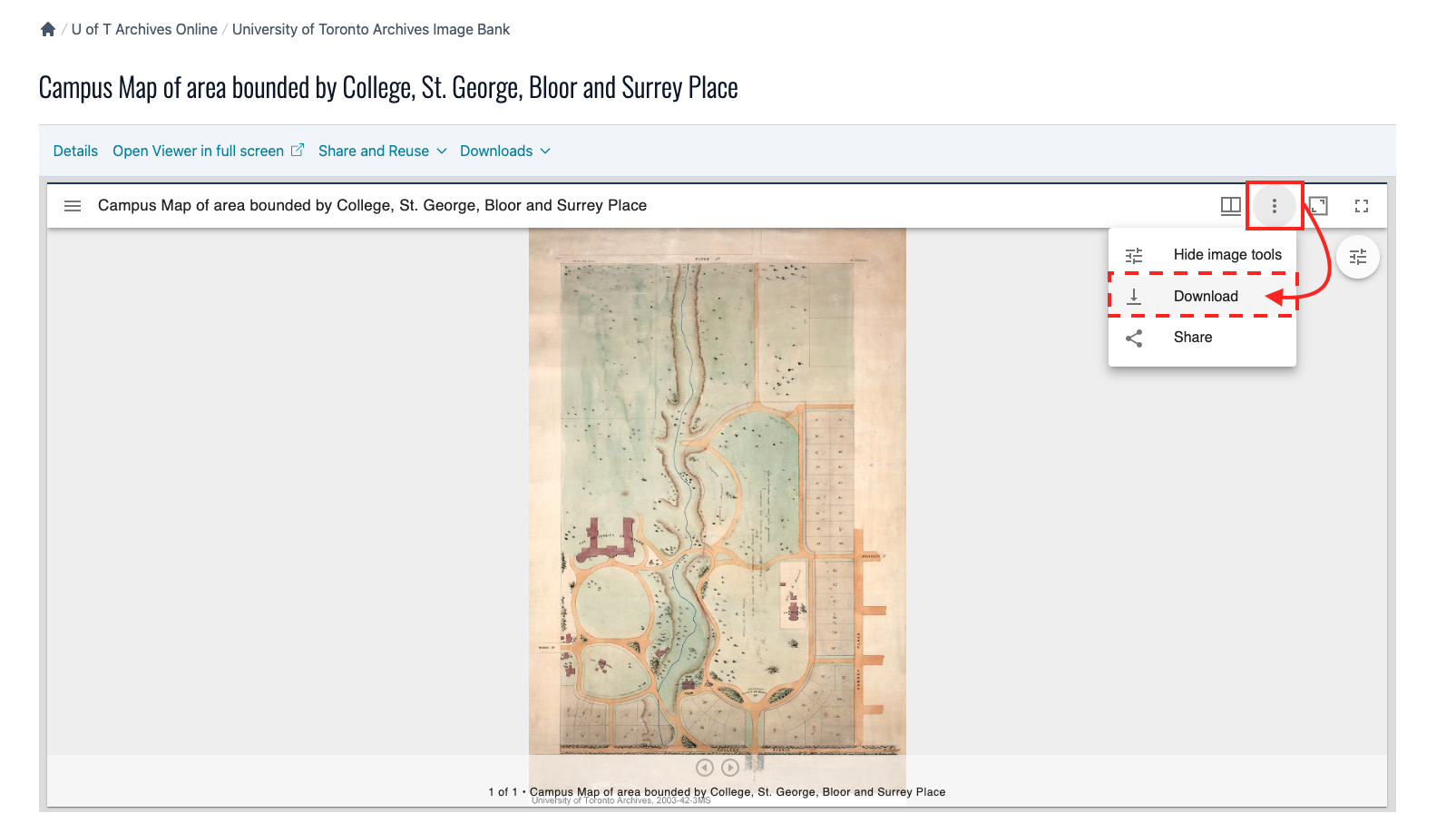
Downloading from within the image viewer provides a range of image sizes that you can select to download. If you want to download the original, full-size image then please refer to Option 1, described above.

Download images from Collections U of T - objects with multiple images
For objects with multiple items - such as this Canadian Wild Flowers (1st ed., 1868) manuscript from Rare Books and Special Collections - you will not see any image download options in the "Downloads" dropdown. Instead, you must navigate to the specific item view page to find image download options under the "Downloads" dropdown menu item.
Select the "View Items" dropdown menu item and then select "List All Items" to access a gallery view of each digitized item in the object (you can also use the "Browse from the First Item" option if you prefer to browse the items page-by-page).
Note: if you would like to download all of the images in a multi-item object please refer to the Download from IIIF section at the bottom of this page for batch download options.

On the List All Items page, scroll through the gallery of items to find the image you want to download. Select it.

On the item page, you can now select the "Downloads" dropdown menu item and then select the image format you would like to download.

You can also use the image viewer download option method, described above, to download images per-item in a multi-item object. For batch download options, refer to the Download from IIIF section at the bottom of this page.
Download from Collections U of T IIIF
IIIF Image API download - single item download
This section assumes you have some familiarity with IIIF. If you would like to learn more about IIIF you can read the Getting Started FAQ.
The IIIF Image API can be used to request and download an image from Collections U of T. Collections U of T currently uses IIIF Image API version 2.1.
More information about using the IIIF Image API to request and download images can be found in the official IIIF documentation page detailing the IIIF Image API's Image Request Parameters (version 2.1).
Collections U of T IIIF Image API URLs for the original, full size image conform to the following template:
https://iiif.library.utoronto.ca/image/v2/**PID**/full/full/0/default.jpg
Within the URL, the **PID** is the identifier for the item. Note that you must use the identifier of the Collections U of T item for the image you want to download in the URL if you are downloading an image from a multi-item object.
For example, chamberlin:Chamberlin_a_0003 is the identifier of the Canadian Wild Flowers (1st ed., 1868) multi-item object.
However, you must use the identifier of the specific item, such as the identifier chamberlin:Chamberlin_a_0003_0026 for page 26, if you wish to use the IIIF Image API to download an image from this multi-item object.
Therefore, the IIIF Image API URL for page 26 is:
https://iiif.library.utoronto.ca/image/v2/chamberlin:Chamberlin_a_0003_0026/full/full/0/default.jpg
From this URL you can access the image in your browser window and then download it using your browser’s Save command.
You can also modify the image based on the IIIF Image API version 2.1 Image Request Parameters and then download the image based on the modifications you make to its URL.
IIIF download via external tools
The following tools can be used to download images, and batches of images via IIIF manifests.
Note that these tools are external to Collections U of T and are not maintained or documented by the University of Toronto Libraries. Consult the tool's external documentation for further instructions.
- IIIF Download by Liz Fischer - https://www.lizmfischer.com/iiif-tools/download
- This tool allows you to download a batch of images via a IIIF manifest.
- Note: this tool may not work with collection-level manifests, such as https://iiif.library.utoronto.ca/presentation/v2/collections/fisher1:root
for the Scott Carter collection. Instead, use a IIIF manifest for specific Book or Image items to download images.
Thank you to the IIIF community for sharing resources and help tips adapted for this page.